 Understory
A notebook that grows smarter as you fill it
Understory helps you discover connections, link ideas, and shape them into outlines.
A Zettelkasten you’ll actually keep using
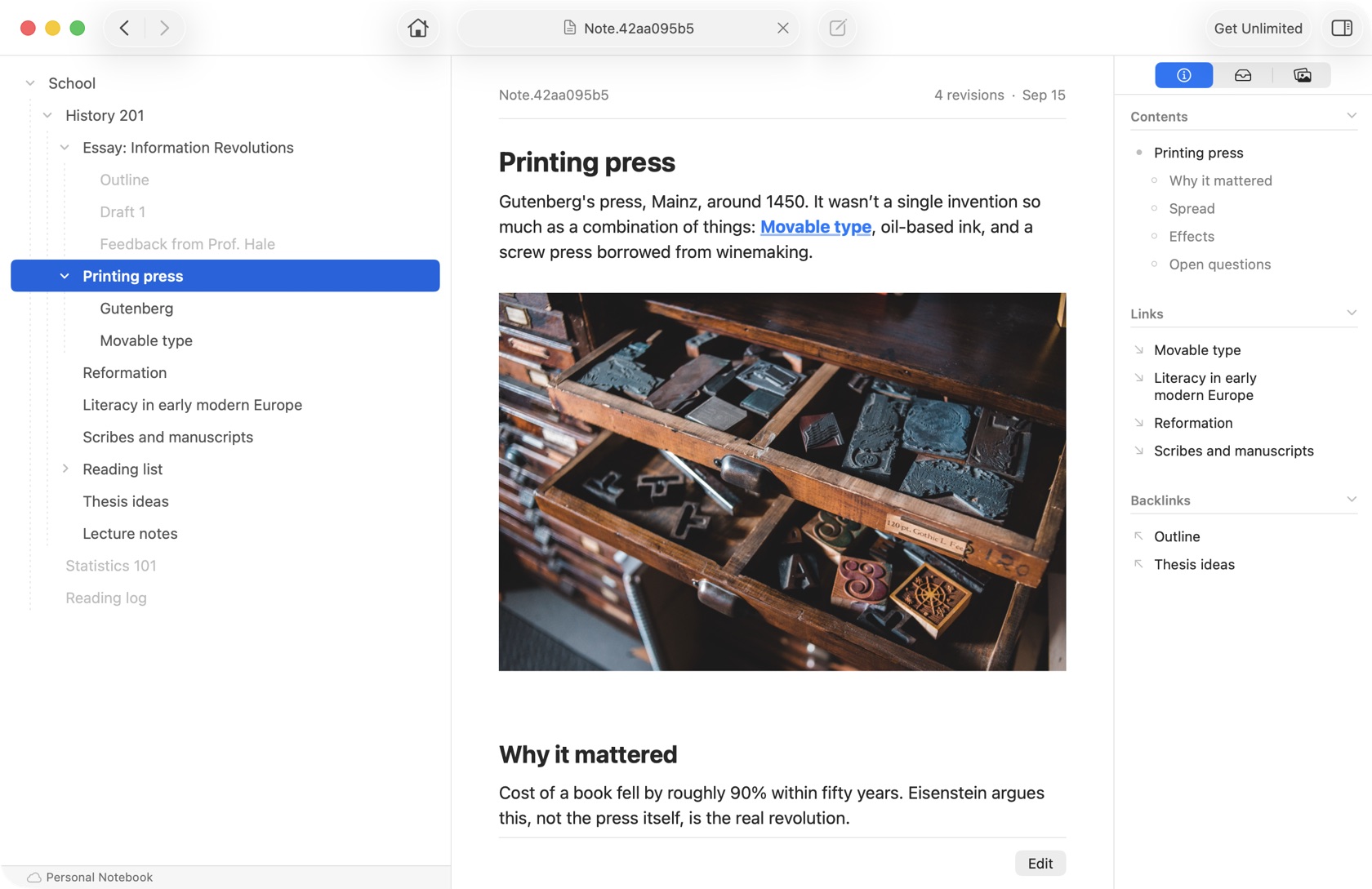
Understory is a Mac app for building a collection of networked notes in the style of Zettelkasten. It distills the idea into a form that’s easy to pick up, without the complexity apps in this category tend to accumulate. Use it to grow an interlinked body of knowledge around whatever you’re studying, researching, or can’t stop thinking about.
Just start writing
A note is just text. There’s no title to invent, no filename to choose, and no folder to decide on before you’re allowed to write anything down. Have a quick idea? Hit ⌘N, type it, and you’re done.
Tags work the same way. Type #brainstorming in the note itself and the app picks it up — no jumping to a separate field and breaking your train of thought.
Nothing has to be organized up front. Get the thought down first and shape it later.
Discover connections
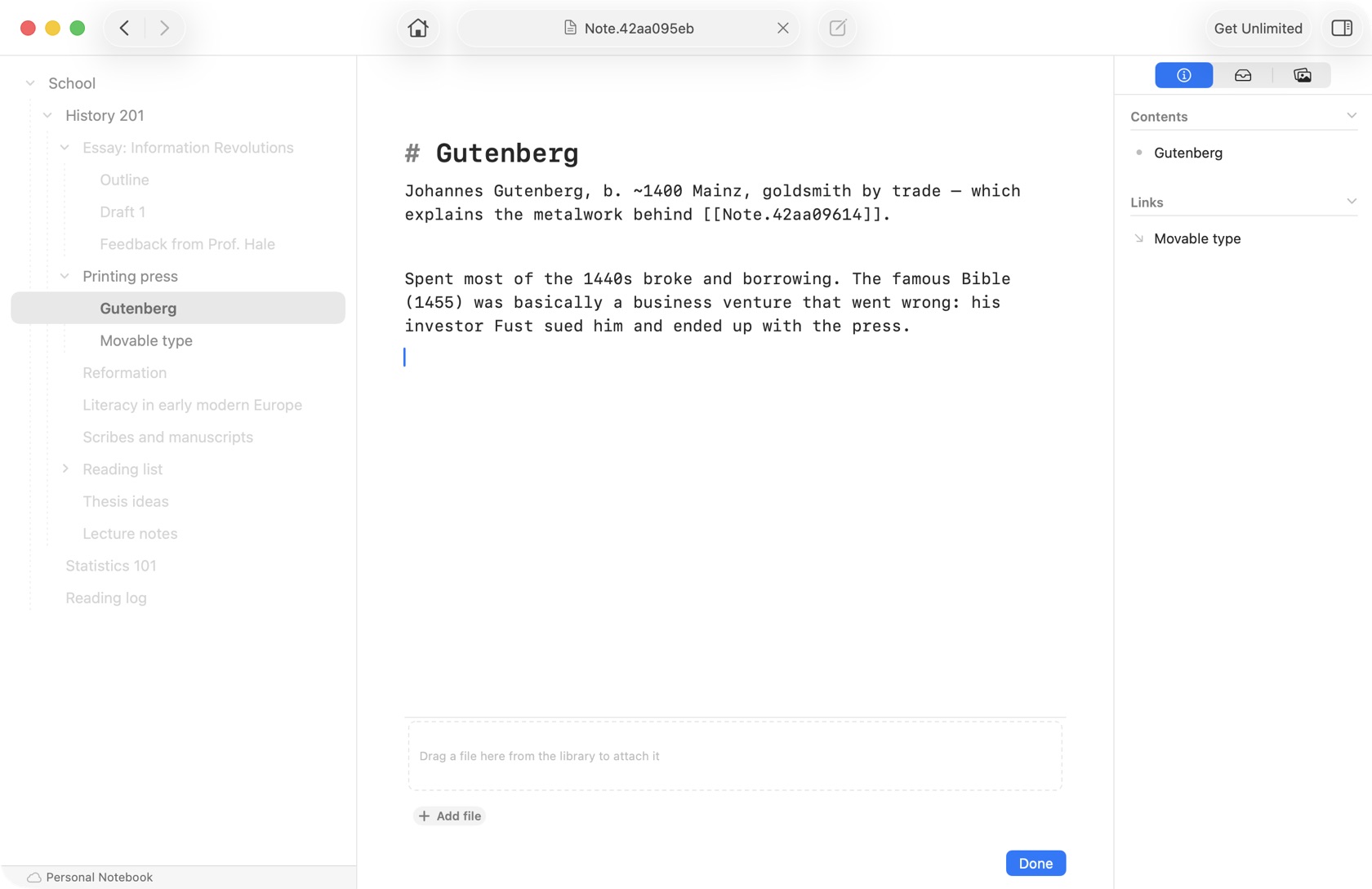
Understory sits about halfway between an outliner and an ordinary notes app. File one note under another and you’ve started an outline — nest them as deep as you like, reorder them, or move them somewhere else. The difference is that the same note can sit in more than one outline at once, so you’re never stuck picking the one right place for an idea.
Links and backlinks
Notes link to each other too, right in the text, the way pages on the web do. Every link works in both directions, so backlinks come for free: a note shows what points at it as well as what it points to.
Remarkably fast search
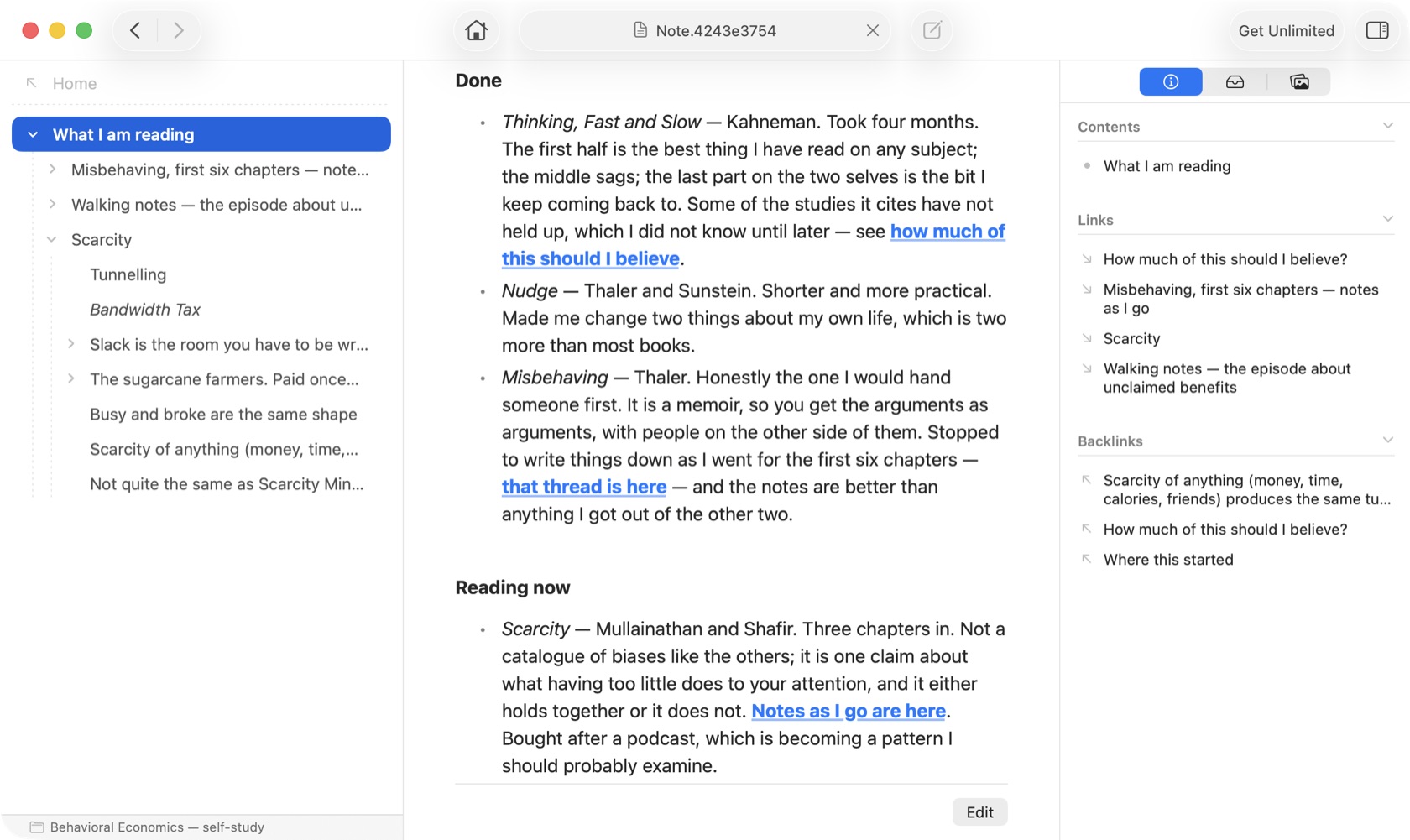
Results update on every keystroke, so every note you’ve ever written stays within easy reach. Filter by tag or by date, or go straight to a note by name.
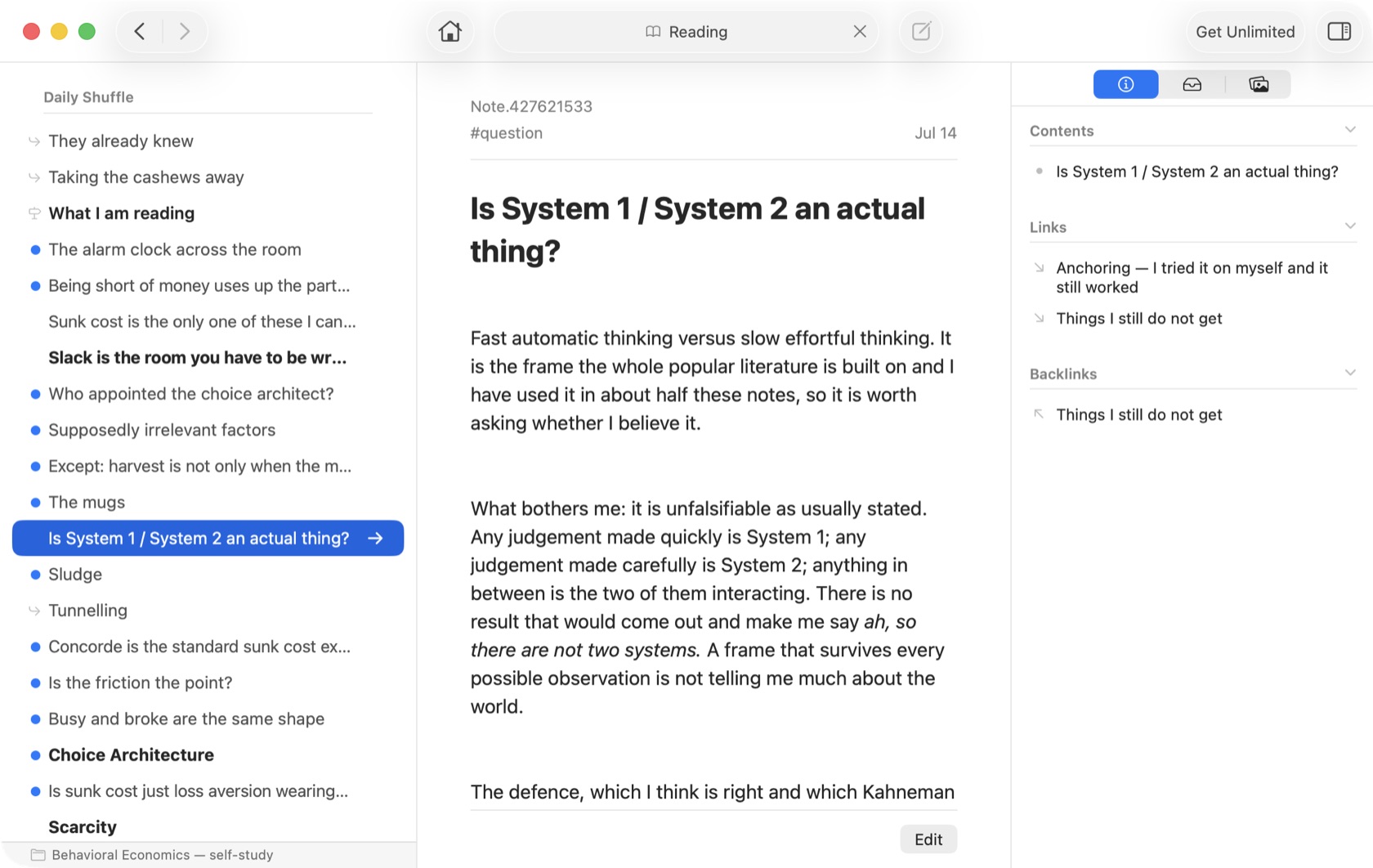
Reading mode
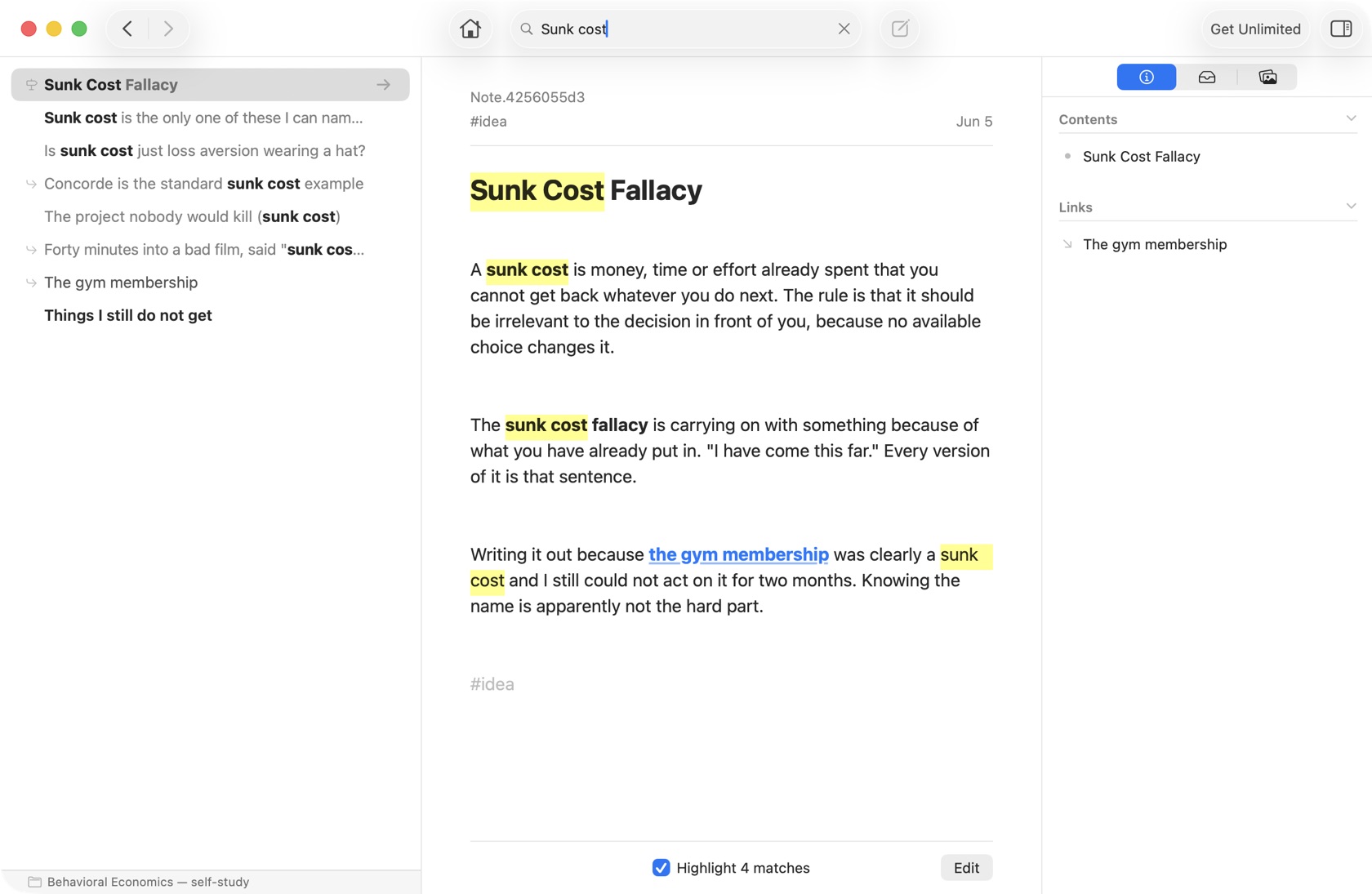
Every day, a different handful of your old notes — skipping the ones you’ve already read. Ideas you wrote months ago turn up again without you going looking for them.
Your notes stay yours
Keep your notes in a plain folder of Markdown files on your Mac (a Project Notebook), or in your own iCloud account, synced between your Macs (a Personal Notebook). Either way there’s no Understory account to create, and nothing of yours passes through my hands.
Every version of a note is kept, too. Rewrite a note a dozen times over the years and the earlier drafts are all still there, so you can look back at what it used to say — and at what you used to think.
Questions
Is this a subscription?
No. One purchase, and it’s yours.
Is there an iPhone or iPad version?
Not yet. Mac only for now.
How is this different from an outliner?
An outliner has one tree that everything must hang from. In Understory a note can sit in several trees, or in none, and links cut across all of them.
Get Understory

It’s free to try, with every feature working from the first launch — there’s only a cap on how many notes a notebook holds, with enough room to find out whether it changes anything for you. A one-time payment removes the cap. No subscription. Details on the pricing page.
If you run into a problem or have a question, email me at support@ussher.ca, or join the Discord to talk about the app.